Python Matplotlib

Python Matplotlib

知识点

1、什么是Matplotlib

Matplotlib 是一个 Python 2D 绘图库,可用于Python 脚本,Python 和 Python shell ,jupyter笔记本,web应用程序服务器和四个图形用户界面工具包。可绘成直方图,功率图,条形图,错误图,散点图等。

2、为什么学习Matplotlib

可视化数据,可以清晰的理解数据,从而调整我们的分析方法

  • 能将数据进行可视化,更加直观的呈现
  • 使数据更加客观,更具有说服力

3、常见的图形种类及意义

  • 折线图:以折线的上升或者下降来表示统计流量的增减变化统计图

    特点:能够显示数据的变化趋势,反映事物的变化情况

  • 散点图:用两组数据构成多个坐标点,考察坐标点的分布,判断两变量之间是否存在某种关联或总结坐标点的分布模式。

    特点:判断变量之间是否窜在数量关联趋势,展示分布规律

  • 柱状图:排列在工作表的列或行中的数据可以绘制到柱状图中。

    特点:绘制离散的数据,能够一眼看出各个数据的大小,比较数据之间的差别。

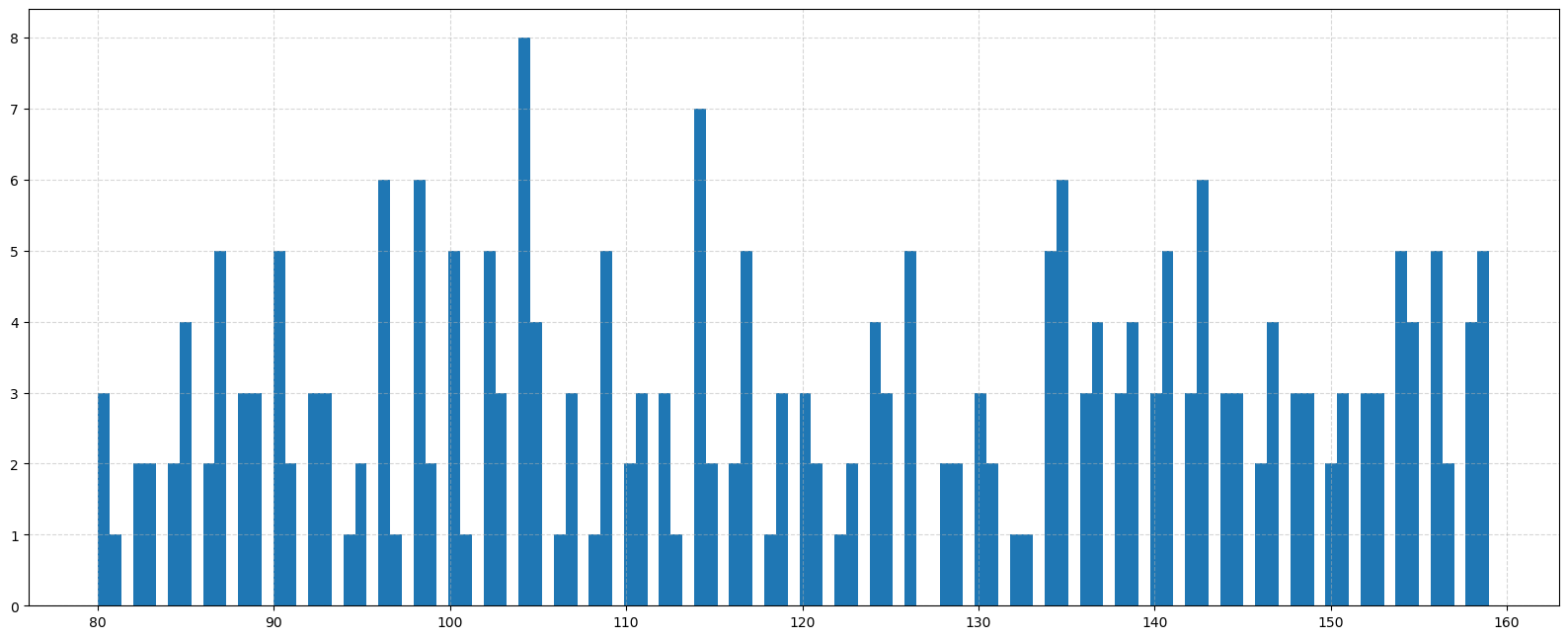
  • 直方图:由一系列高度不等的纵向条纹或者线段表示数据的分布情况。一般用横轴表示数据范围,纵轴表示分布情况。

    特点:绘制连续性的数据展示一组或者多组数据的分布

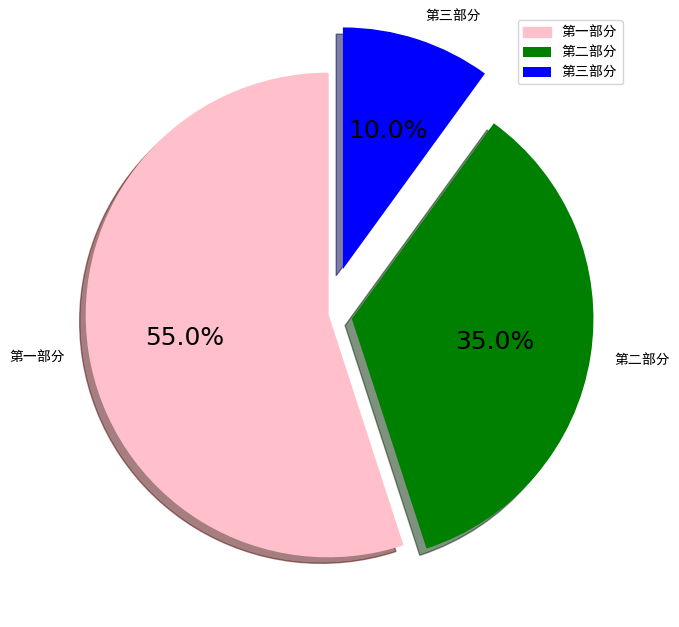
  • 饼图:用于表示不同分类的占比情况,通过弧度大小来对比各种分类。

    特点:分类数据的占比情况

4、 Matplotlib画图的简单实现

1
2
3
4
5
6
7
8
9
# 导入
import matplotlib.pyplot as plt
# from matplotlib import pyplot as plt

# 绘制折线 x , y
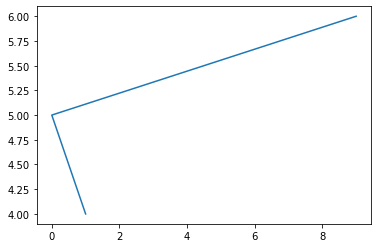
plt.plot([1,0,9],[4,5,6])

# 展示
plt.show()

1

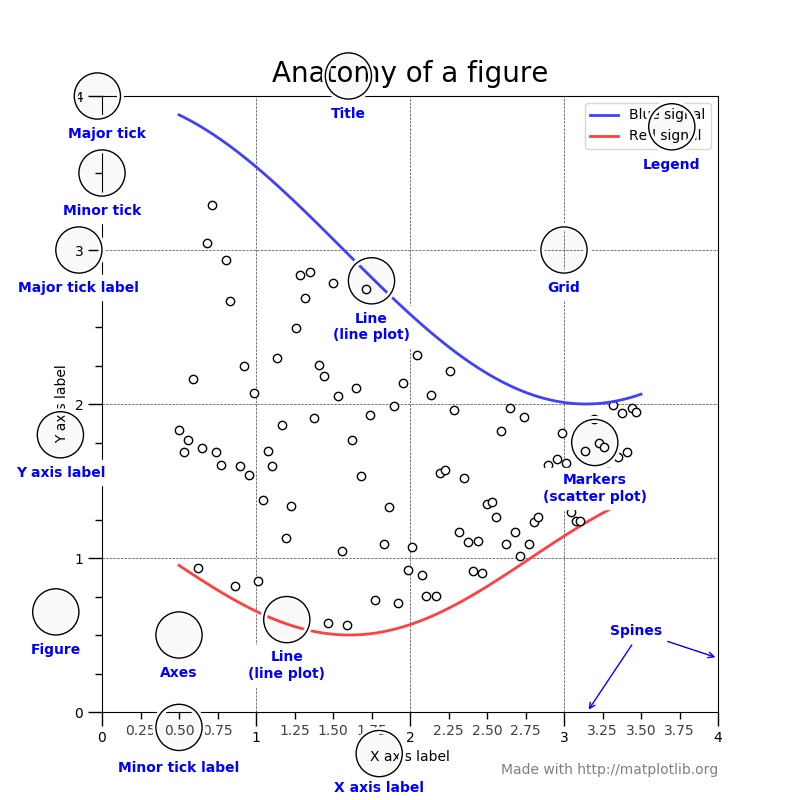
5、对Matplotlib 图像的认识

111

6、折线图

6.1 折线图的绘制

1
2
3
4
5
6
from matplotlib import pyplot as plt
# x 轴的位置
x = range(1,8)
y = [17,17,18,15,11,11,13]
plt.plot(x,y)
plt.show()

6.2 折线的颜色和形状设置

1
2
3
4
5
6
7
8
9
10
11
12
13
14
15
16
17
18
19
from matplotlib import pyplot as plt
# x 轴的位置
x = range(1,8)
y = [17,17,18,15,11,11,13]
# 传入 x 和 y , 通过 plot 画折线图
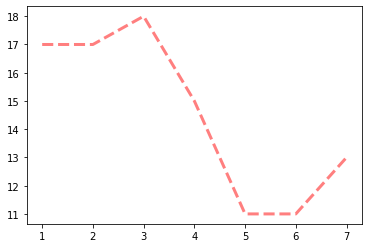
plt.plot(x,y,color ='red',alpha = 0.5,linestyle='--',linewidth=3)
'''基础属性设置
color = 'red' :折线的颜色
alpha = 0.5 : 透明度 0 - 1
linestyle='--':折线的形式
linewidth = 3: 折线的宽度
'''
'''线的样式
- 实线(solid)
-- 短线(dashed)
-. 短点相间线(dashdot)
: 虚线(dotted)
'''
plt.show()

2

6.3 折点样式

1
2
3
4
5
6
7
8
9
10
from matplotlib import pyplot as plt
# 传入 x 和 y , 通过 plot 画折线图
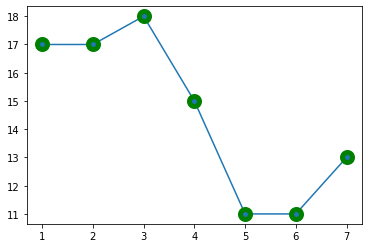
plt.plot(x,y,marker='o',markersize='10',markeredgecolor='green',markeredgewidth=5)
'''
marker='o': 折点标记
markersize='20': 折点标记的大小
markeredgecolor='green': 折点加边框颜色
markeredgewidth=5: 折点边框颜色粗细
'''
plt.show()

3

折点形状选择

characterdescription
‘-‘solid line style
‘–’dashed line style
‘-.’dash-dot line style
‘:’dotted line style
‘.’point marker
‘,’pixel marker
‘o’circle marker
‘v’triangle_down marker
‘^’triangle_up marker
‘<’triangle_left marker
‘>’triangle_right marker
‘1’tri_down marker
‘2’tri_up marker
‘3’tri_left marker
‘4’tri_right marker
‘s’square marker
‘p’pentagon marker
‘*’star marker
‘h’hexagon1 marker
‘H’hexagon2 marker
‘+’plus marker
‘x’x marker
‘D’diamond marker
‘d’thin_diamond marker
‘|’vline marker
‘_’hline marker

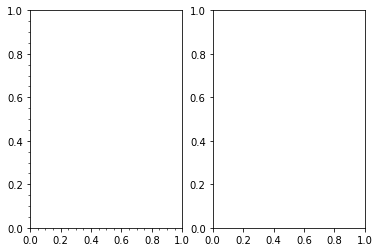
主刻度次刻度

1
2
3
4
5
6
7
8
9
10
11
from matplotlib import pyplot as plt
from pylab import *
plt.plot(x,y)
subplot(1,2,1)
# 开启次刻度
minorticks_on()
subplot(1,2,2)
# 关闭次刻度
minorticks_off()
show()
plt.show()

6.1

1
2
3
4
5
6
7
8
9
10
11
12
13
14
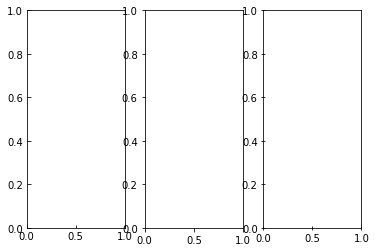
# 刻度朝向
from matplotlib import pyplot as plt
from pylab import *
plt.plot(x,y)
subplot(1,3,1)
tick_params(direction='in')

subplot(1,3,2)
tick_params(direction='out')

subplot(1,3,3)
tick_params(direction='inout')

plt.show()

6.2

1
2
3
4
5
6
7
8
9
10
11
12
13
14
15
16
17
18
19
20
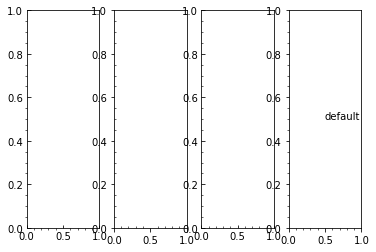
# 选择主次刻度
from matplotlib import pyplot as plt
from pylab import *
plt.plot(x,y)
subplot(1,4,1)
minorticks_on()
tick_params(which='major',direction='in')

subplot(1,4,2)
minorticks_on()
tick_params(which='minor',direction='in')

subplot(1,4,3)
minorticks_on()
tick_params(which='both',direction='in')

subplot(1,4,4)
minorticks_on()
text(0.5,0.5,'default')
plt.show()

6.3

1
2
3
4
5
6
7
8
9
10
11
12
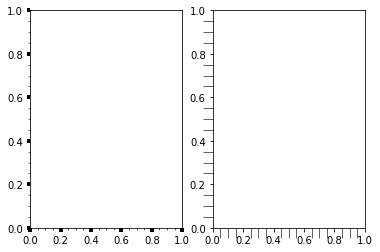
# 修改刻度长度
from matplotlib import pyplot as plt
from pylab import *
plt.plot(x,y)
subplot(1,2,1)
minorticks_on()
tick_params(which='major',width=4)

subplot(1,2,2)
minorticks_on()
tick_params(which='minor',length=10)
plt.show()

6.4

1
2
3
4
5
6
7
8
9
10
11
12
13
14
15
16
![6.5](../笔记图片/matplotlib/6.5.png# 哪些轴上显示刻度
from matplotlib import pyplot as plt
from pylab import *
plt.plot(x,y)
subplot(1,4,1)
tick_params(top='on',bottom='off',left='off',right='off')

subplot(1,4,2)
tick_params(top='off',bottom='on',left='off',right='off')

subplot(1,4,3)
tick_params(top='off',bottom='off',left='on',right='off')

subplot(1,4,4)
tick_params(top='off',bottom='off',left='off',right='on')
plt.show()

6.5

6.4 设置图片大小和保存

1
2
3
4
5
6
7
8
9
10
11
12
13
14
15
16
17
18
19
20
21
22
23
24
25
![4](../笔记图片/matplotlib/4.pngfrom matplotlib import pyplot as plt
import random
x = range(2,26,2) # x轴的位置
y = [random.randint(15,30) for i in x]
# 设置图片的大小
plt.figure(figsize=(20,8),dpi=80)
'''
figsize:指定figure的宽和高,单位是英寸
dpi=80: 每英寸上的素点 1英寸是2.5cm, A4纸 21 *30cm
'''
plt.plot(x,y)

# 展示
# plt.show()
'''
如果在保存之前使用了show(), 那么再次打开将是一张空白文件。
因为 show 的打开方式是先展示,然后清空空内存,
而 使用open 打开时,如果文件不存在会先创建一个空白的再打开。
所以 save 要在 show 之前执行。
'''
# 保存
plt.savefig('./t1.png')
open
# 如片格式可以保存为 svg ,矢量图放大不会产生锯齿
# plt.savefig('./ti.svg')

4

6.5 绘制x轴和y轴的刻度

1
2
3
4
5
6
7
8
9
10
11
12
13
14
15
16
17
18
19
20
21
22
23
24
25
26
![5](../笔记图片/matplotlib/5.png# 绘制 x y 刻度
from matplotlib import pyplot as plt
import random
x = range(2,26,2) # x轴的位置
y = [random.randint(15,30) for i in x]

plt.figure(figsize=(20,8),dpi=80)
# 设置 x 轴的刻度疏密程度
# plt.xticks(x)
# plt.xticks(range(0,25))
# 设置 y 轴的刻度
# plt.yticks(y)
# plt.yticks(range(min(y),max(y)+1))

# 构造 x 轴的刻度标签
x_ticktes_label = ['{}:00'.format(i) for i in x]

# rotation = 45 字体旋转45度
plt.xticks(x,x_ticktes_label,rotation = 45) # 参数 x 确定刻度,x_ticktes_label 确定刻度的值

# 设置 y 轴的刻度标签
y_ticks_label = ['{}°C'.format(i) for i in range(min(y),max(y)+15)]
plt.yticks(range(min(y),max(y)+1),y_ticks_label)

plt.plot(x,y)
plt.show()

5

6.6 设置显示中文

1
2
3
4
5
6
7
8
9
10
11
12
13
14
15
16
17
18
19
20
21
22
23
24
25
26
27
28
29
![6](../笔记图片/matplotlib/6.png# 设置显示中文
# marplotlib 只显示英文,无法显示中文,需要修改 matplotlib 的默认字体
# 通过 matplotlib 下的 font_manager 可以解决
# 两个小时内的每分钟跳动变化
from matplotlib import pyplot as plt
import random
x = range(0,120) # x轴的位置
y = [random.randint(15,30) for i in range(120)]

plt.figure(figsize=(20,8),dpi=80)
plt.plot(x,y)
'''
查看电脑字体
Linux、Mac 下支持的字
终端执行:fc-list
查看支持的中文(冒号前面加空格)fc-list :lang=zh
查看 Windows 下的字体:"C:\windows\fonts"
也可以自己下载字体(xxx.ttf)
'''
from matplotlib import font_manager
my_font = font_manager.FontProperties(fname='/Windows/Fonts/simhei.ttf',size = 36)
my_font1 = font_manager.FontProperties(fname='/Windows/Fonts/simhei.ttf',size = 18)
# 设置坐标轴信息
plt.xlabel('时间',rotation = 45,fontproperties = my_font1)
plt.ylabel('次数',fontproperties = my_font1)
# 设置标题
plt.title('每分钟跳动次数',fontproperties = my_font)

plt.show()

6

6.7 一线多图

1
2
3
4
5
6
7
8
9
10
11
12
13
14
15
16
17
18
19
20
21
22
23
24
25
26
27
![7](../笔记图片/matplotlib/7.png# 一图多线
# 根据自己的实际情况,统计出来你和哥们各自从11岁到30随每年交往的女朋友数量 y1 和 y2 ,画出数据折线图,分析每年交朋友的数量。

y1 = [1,0,1,1,2,4,3,4,4,5,6,5,4,3,1,1,1,1,2,1]
y2 = [1,0,3,1,1,2,2,3,4,3,2,1,2,1,1,1,1,1,1,1]

x = range(11,31)
# 设置图形
plt.figure(figsize=(20,8),dpi=80)
plt.plot(x,y1,color='red',label='自己')
plt.plot(x,y2,color='blue',label='哥们儿')

# 设置 x 轴刻度
my_font = font_manager.FontProperties(fname='/Windows/Fonts/simhei.ttf',size = 18)
x_ticks_labels = ['{}岁'.format(i) for i in x]
plt.xticks(x,x_ticks_labels,fontproperties=my_font)

# 绘制网格(网格也可以设置线的样式)
# alpha = 0.4 设置透明度
plt.grid(alpha=0.4)

# 添加图列(注意:只有这里是添加 prop 参数设置中文,其他都用 fontproperties)
# 设置位置 loc : upper left、 lower left、 center left、 upper center
plt.legend(prop=my_font,loc='upper right')

# 展示
plt.show()

7

6.8 一图多坐标系子图

1
2
3
4
5
6
7
8
9
10
11
12
13
14
15
16
17
18
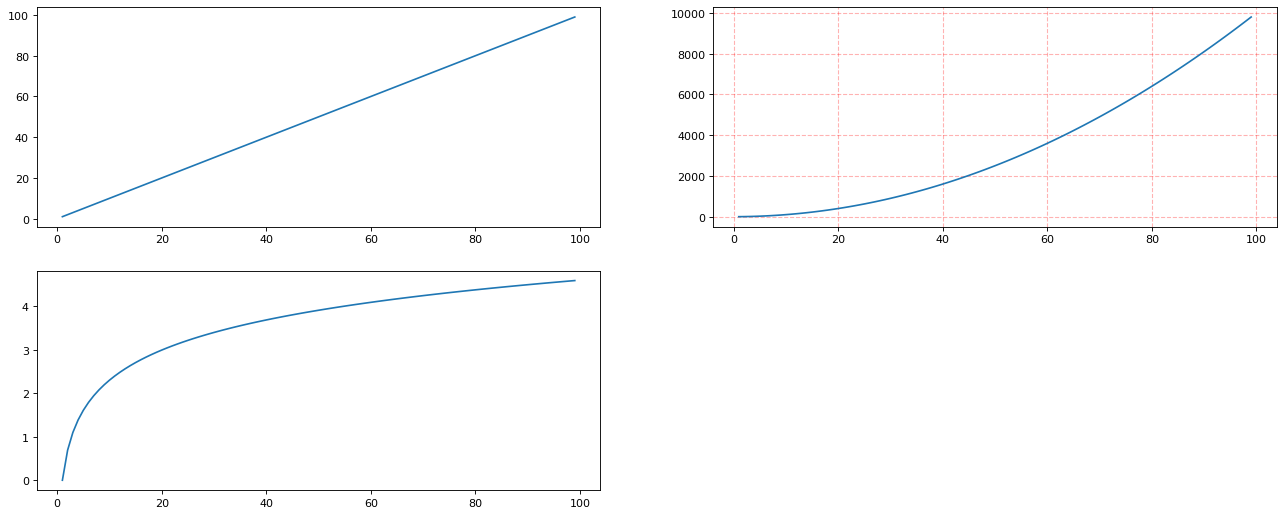
import matplotlib.pyplot as plt
import numpy as np

# add_subplot 方法 -----给figure新增子图
x = np.arange(1,100)
# 新建 figure 对象
fig = plt.figure(figsize=(20,8),dpi=80)
# 新建子图1
ax1 = fig.add_subplot(2,2,1)
ax1.plot(x,x)
# 新建子图2
ax2 = fig.add_subplot(2,2,2)
ax2.plot(x,x**2)
ax2.grid(color='r',linestyle='--',linewidth=1,alpha=0.3)
# 新建子图3
ax3 = fig.add_subplot(2,2,3)
ax3.plot(x,np.log(x))
plt.show()

8

6.9 设置坐标轴范围

1
2
3
4
5
6
7
8
9
10
11
12
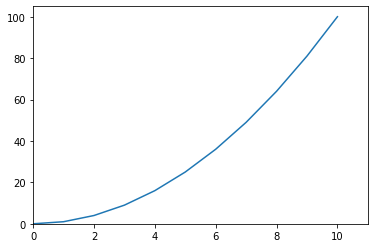
# 设置坐标轴范围
import matplotlib.pyplot as plt
import numpy as np
x = np.arange(-10,11,1)
y = x**2
plt.plot(x,y)
# 可以调x轴的左右两边
# plt.xlim(xmin=-4)
# plt.xlim(xmax=4)
plt.ylim(ymin=0)
plt.xlim(xmin=0)
plt.show()

9

6.10 改变坐标轴的默认显示方式

1
2
3
4
5
6
7
8
9
10
11
12
13
14
15
16
17
18
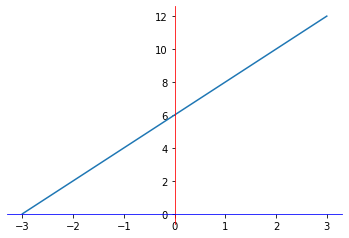
import matplotlib.pyplot as plt
import numpy as np
y = range(0,14,2)
x = [-3,-2,-1,0,1,2,3]
# 获得当前图标的图像
ax = plt.gca()

# 设置图形的包围线
ax.spines['right'].set_color('none')
ax.spines['top'].set_color('none')
ax.spines['bottom'].set_color('blue')
ax.spines['left'].set_color('red')

# 设置底边的移动范围,移动到y轴的0位置,‘data' :移动轴的位置到交叉轴的指定
ax.spines['bottom'].set_position(('data',0))
ax.spines['left'].set_position(('data',0))
plt.plot(x,y)
plt.show()

10

7、绘制散点图

1
2
3
4
5
6
7
8
9
10
11
12
13
14
15
16
17
18
19
20
21
22
23
24
25
26
27
28
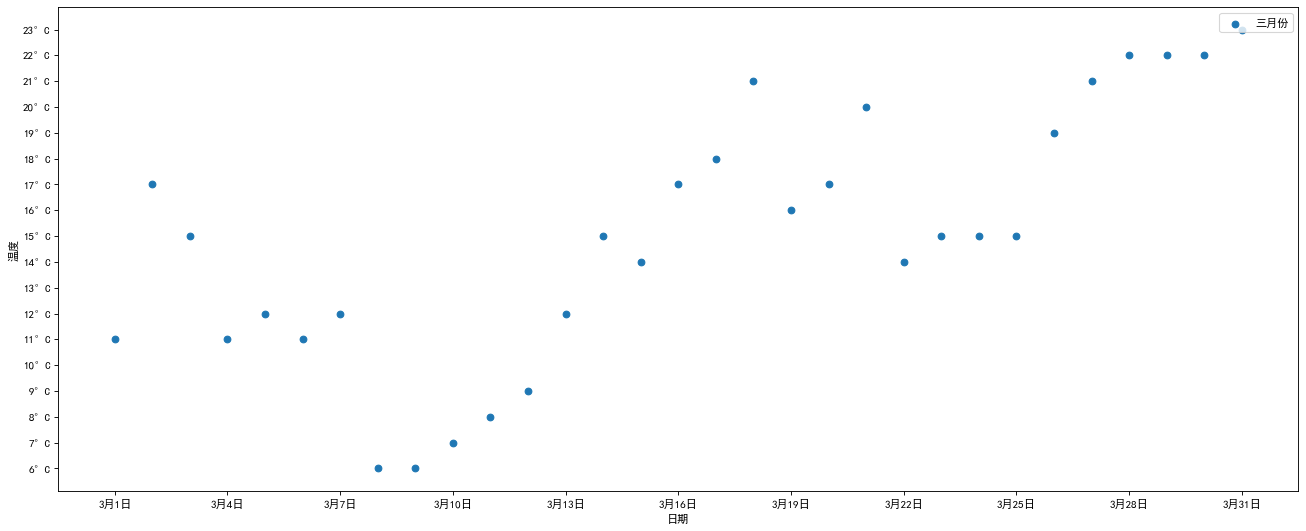
'''
3月每天最高气温
a =
[11,17,15,11,12,11,12,6,6,7,8,9,12,15,14,17,18,21,16,17,20,14,15,15,15,19,21,22,22,22,23]
'''
from matplotlib import pyplot as plt
from matplotlib import font_manager
y = [11,17,15,11,12,11,12,6,6,7,8,9,12,15,14,17,
18,21,16,17,20,14,15,15,15,19,21,22,22,22,23]
x = range(1,32)

# 设置图形大小
plt.figure(figsize=(20,8),dpi=80)
# 使用scatter绘制散点图
plt.scatter(x,y,label='三月份')

# 调整x轴刻度
my_font = font_manager.FontProperties(fname='/Windows/Fonts/simhei.ttf',size = 10)
x_ticks_labels = ['3月{}日'.format(i) for i in x]
plt.xticks(x[::3],x_ticks_labels[::3],fontproperties=my_font)
plt.xlabel('日期',fontproperties=my_font)
plt.ylabel('温度',fontproperties=my_font)

# y 轴刻度
plt.yticks(range(min(y),max(y)+1),['{}°C'.format(i) for i in range(min(y),max(y)+1)],fontproperties=my_font)
# 图例
plt.legend(prop=my_font,loc='upper right')
plt.show()

11

8、 绘制条形图

1
2
3
4
5
6
7
8
9
10
11
12
13
14
15
16
17
18
19
20
21
22
23
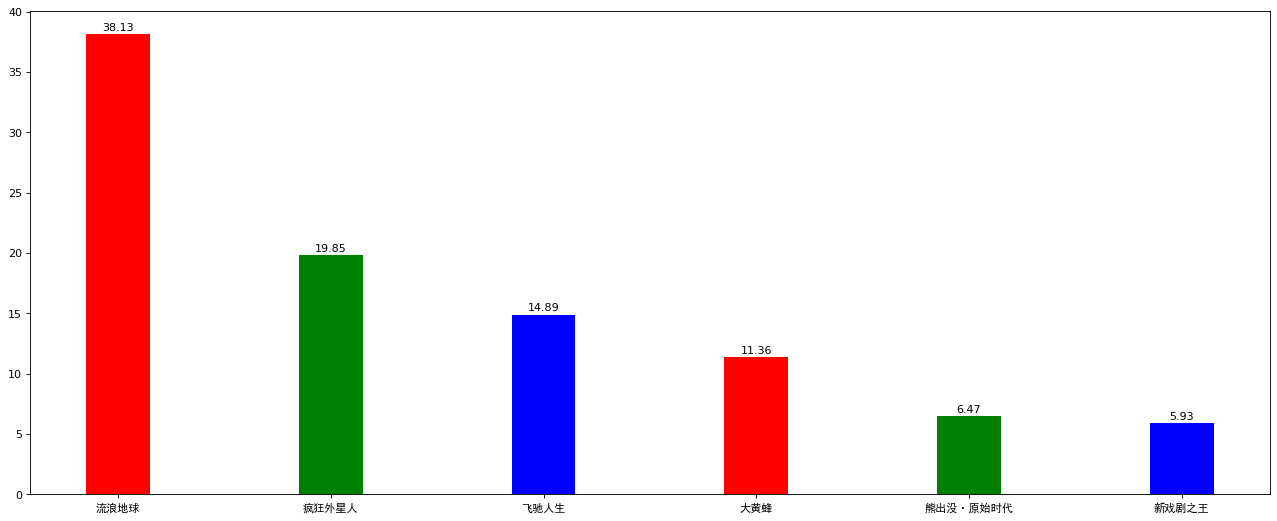
'''
2019年内地票房前20的电影的票房
a = ['流浪地球','疯狂外星人','飞驰人生','大黄蜂','熊出没·原始时代','新戏剧之王']
b = ['38.13','19.85','14.89','11.36','6.47','5.93']
'''
from matplotlib import pyplot as plt
from matplotlib import font_manager
a = ['流浪地球','疯狂外星人','飞驰人生','大黄蜂','熊出没·原始时代','新戏剧之王']
b = ['38.13','19.85','14.89','11.36','6.47','5.93']
my_font = font_manager.FontProperties(fname='/Windows/Fonts/simhei.ttf',size = 10)
plt.figure(figsize=(20,8),dpi=80)

# 绘制条形图 注意b是字符列表
rects = plt.bar(range(len(a)),[float(i) for i in b],
width=0.3,color=['r','g','b','r','g','b'])
plt.xticks(range(len(a)),a,fontproperties=my_font)
plt.yticks(range(0,41,5))

# 在条形图上加注(水平居中)
for rect in rects:
height = rect.get_height()
plt.text(rect.get_x() + rect.get_width()/2,height+0.3,str(height),ha='center')
plt.show()

12

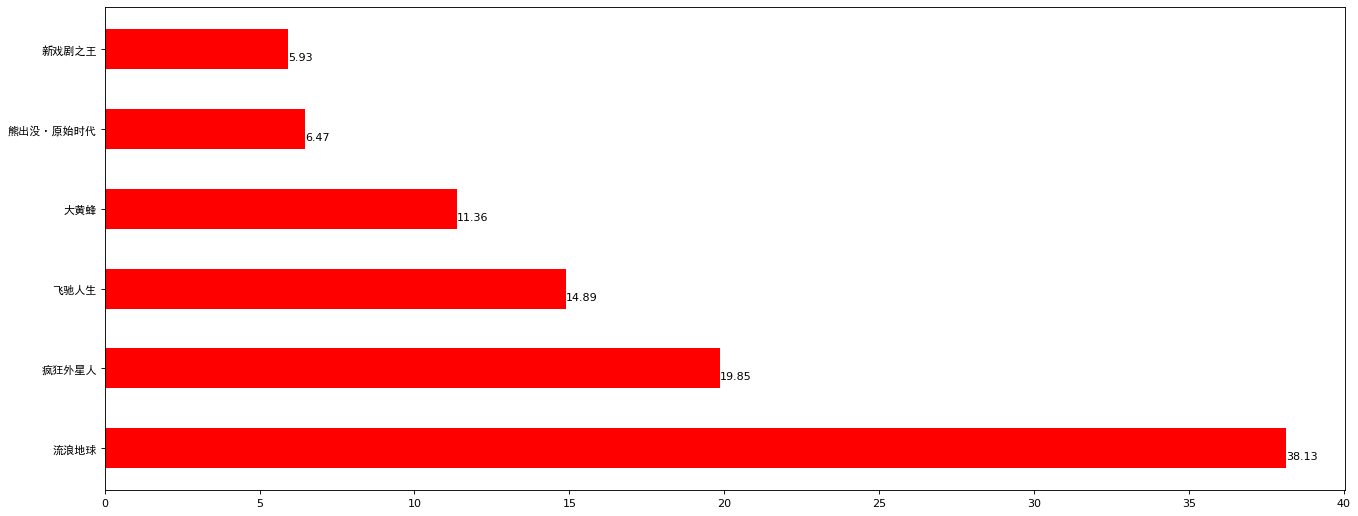
横向条形图

1
2
3
4
5
6
7
8
9
10
11
12
13
14
15
16
17
18
19
from matplotlib import pyplot as plt
from matplotlib import font_manager
a = ['流浪地球','疯狂外星人','飞驰人生','大黄蜂','熊出没·原始时代','新戏剧之王']
b = [38.13,19.85,14.89,11.36,6.47,5.93]
my_font = font_manager.FontProperties(fname='/Windows/Fonts/simhei.ttf',size = 10)
plt.figure(figsize=(20,8),dpi=80)
# 绘制横向条形图的方法 plt.bar(y,x)
'''
height = 0.3 条形图的宽度
'''
rects = plt.barh(range(len(a)),b,height=0.5,color='r')
plt.yticks(range(len(a)),a,fontproperties=my_font)

# 在条形图上加注(水平居中)
for rect in rects:
width = rect.get_width()
plt.text(width,rect.get_y()+0.3/2,str(width),va='center')

plt.show()

13

并列罗列条形图

1
2
3
4
5
6
7
8
9
10
11
12
13
14
15
16
17
18
![14](../笔记图片/matplotlib/14.pngfrom matplotlib import pyplot as plt
import numpy as np
index = np.arange(4)
BJ = [50,55,53,60]
SH = [44,66,55,41]
fig = plt.figure(figsize=(20,16),dpi=80)
ax1 = fig.add_subplot(2,1,1)
# 并列
ax1.bar(index,BJ,width=0.3)
ax1.bar(index+0.3,SH,width=0.3,color='green')

plt.xticks(index+0.3/2,index)
# 罗列
ax2 = fig.add_subplot(2,1,2)
ax2.bar(index,BJ,width=0.3)
ax2.bar(index,SH,bottom=BJ,width=0.3,color='green')
plt.yticks(range(0,130,10))
plt.show()

14

9、直方图

1
2
3
4
5
6
7
8
9
10
11
12
13
14
15
16
17
18
from matplotlib import pyplot as plt
from matplotlib import font_manager
import numpy as np
my_font = font_manager.FontProperties(fname='/Windows/Fonts/simhei.ttf',size = 10)
time = np.random.randint(80,160,250)
# 创建画布
plt.figure(figsize=(20,8),dpi=100)
# 绘制直方图
# 设置组距离
distance= 2
# 计算组数
group_num = int(max(time)-min(time)/distance)
# 添加网格
plt.grid(linestyle='--',alpha=0.5)
# 绘制
plt.hist(time,bins=group_num)[::2]

plt.show()

15

10、饼图

1
2
3
4
5
6
7
8
9
10
11
12
13
14
15
16
17
18
19
20
21
22
23
24
25
26
27
28
29
30
31
32
33
34
35
36
37
38
39
40
41
42
from matplotlib import pyplot as plt
import matplotlib
from matplotlib import font_manager
my_font = font_manager.FontProperties(fname='/Windows/Fonts/simhei.ttf',size = 10)

label_list=['第一部分','第二部分','第三部分'] # 各部分标签
size = [55,35,10] # 各部分大小
color = ['red','green','blue'] # 各颜色
explode = [0,0.1,0.2] # 各部分突出值
'''
explode:设置各部分图突出
labels:设置各部分标签
labeldistance:标签文本距离圆点位置 1.1 %%bash示1.1倍半径
autopct:设置圆里里面文本
shadow:设置是否有阴影
startangle:设置起始角度 默认从0开始
pctdistance:设置圆内文本距离圆心距离
返回值:
patches: matplotlib.patches.Wedge列表(扇形实例)
l_text:label matplotlib.text.Text列表(标签实例)
p_text:label matplotlib.text.Text列表(百分比标签列表)
'''
plt.figure(figsize=(20,8),dpi=100)
patches,l_text,p_text = plt.pie(size,
explode=explode,
colors=color,
labels=label_list,
labeldistance=1.1,
autopct="%1.1f%%",
shadow=True,
startangle=90,
pctdistance=0.6)
for t in l_text:
print(dir(t))
t.set_fontproperties(my_font)
for t in p_text:
t.set_size(18)
for t in patches:
t.set_color('pink')
break
plt.legend(prop=my_font)
plt.show()

16

11、百度echarts、pyecharts

Pyecharts 渲染效果更好,交互式的 html 文件。但是目前版本还不是很稳定,且生成的html 文件不是很好利用到学术写作。以后再学习。展示一个官方示例,不然我的小破站扛不住。此外还有数据分析常用的可视化工具 tableau ,有缘在学习。

3D曲面图

1
2
3
4
5
6
7
8
9
10
11
12
13
14
15
16
17
18
19
20
21
22
23
24
25
26
27
28
29
30
31
32
33
34
35
36
37
38
39
40
41
42
43
44
45
46
47
48
49
50
51
52
53
54
55
56
57
58
59
60
61
62
63
64
65
66
67
68
69
70
71
72
73
74
75
76
77
import math
from typing import Union

import pyecharts.options as opts
from pyecharts.charts import Surface3D

"""
Gallery 使用 pyecharts 1.1.0
参考地址: https://echarts.baidu.com/examples/editor.html?c=surface-wave&gl=1

目前无法实现的功能:

1、暂时无法设置光滑表面 wireframe
2、暂时无法把 visualmap 进行隐藏
"""


def float_range(start: int, end: int, step: Union[int, float], round_number: int = 2):
"""
浮点数 range
:param start: 起始值
:param end: 结束值
:param step: 步长
:param round_number: 精度
:return: 返回一个 list
"""
temp = []
while True:
if start < end:
temp.append(round(start, round_number))
start += step
else:
break
return temp


def surface3d_data():
for t0 in float_range(-3, 3, 0.05):
y = t0
for t1 in float_range(-3, 3, 0.05):
x = t1
z = math.sin(x ** 2 + y ** 2) * x / 3.14
yield [x, y, z]


(
Surface3D(init_opts=opts.InitOpts(width="1600px", height="800px"))
.add(
series_name="",
shading="color",
data=list(surface3d_data()),
xaxis3d_opts=opts.Axis3DOpts(type_="value"),
yaxis3d_opts=opts.Axis3DOpts(type_="value"),
grid3d_opts=opts.Grid3DOpts(width=100, height=40, depth=100),
)
.set_global_opts(
visualmap_opts=opts.VisualMapOpts(
dimension=2,
max_=1,
min_=-1,
range_color=[
"#313695",
"#4575b4",
"#74add1",
"#abd9e9",
"#e0f3f8",
"#ffffbf",
"#fee090",
"#fdae61",
"#f46d43",
"#d73027",
"#a50026",
],
)
)
.render("surface_wave.html")
)
Awesome-pyecharts
感谢您的阅读,本文由 LEE 版权所有。如若转载,请注明出处:LEE(https://ChubbyLEE-Math.github.io/2020/07/11/Python%20Matplotlib/
Hello World
Python Numpy